
Apps for China Travel: Set Up Payments, DiDi, AMap and Mobile Data Before You Fly
The apps you need for the first hour
For a first trip to mainland China, have a working payment wallet, a map with the right Chinese address, and a way to get online. Set up Alipay as a wallet, WeChat as a second payment and contact option, DiDi for rides, and AMap Global for navigation. Your travel eSIM or home carrier roaming supplies the connection they use. Do the account and SMS checks on Wi-Fi at home.
Your test is simple: can you recognise the right hotel, open a ride estimate without booking, and reach the screen you would show a cashier? Save a copy of the address and transfer plan so you can still reach the hotel if your phone goes offline.
On this page
1. Set up the internet path while you still have Wi-Fi
A travel eSIM is useful if your phone is unlocked, supports the profile and still has room for your home number to be active. Home carrier roaming is simpler when your plan covers mainland China and you need the same line for data and bank texts. A data-only eSIM will not give you a mainland number.
On iPhone, the Cellular Data screen below is where you can see which installed line currently supplies data. At home, leave your normal data line selected. If your eSIM provider allows advance installation, install the profile over Wi-Fi and give it a recognisable label. Check when the validity clock starts.

Keep the home number available for verification. Before you change SIMs at the airport, follow the iPhone, Pixel or Galaxy setup and arrival tests. Confirm mainland coverage separately if your itinerary also includes Hong Kong or Macau.
2. Make one wallet work, then set up the backup
Download Alipay and WeChat from your phone’s store using the links and identifying screens in the payment setup guide. Use the number and country code that can receive your verification texts. Have your passport and a supported card ready in case the app asks to verify your identity.
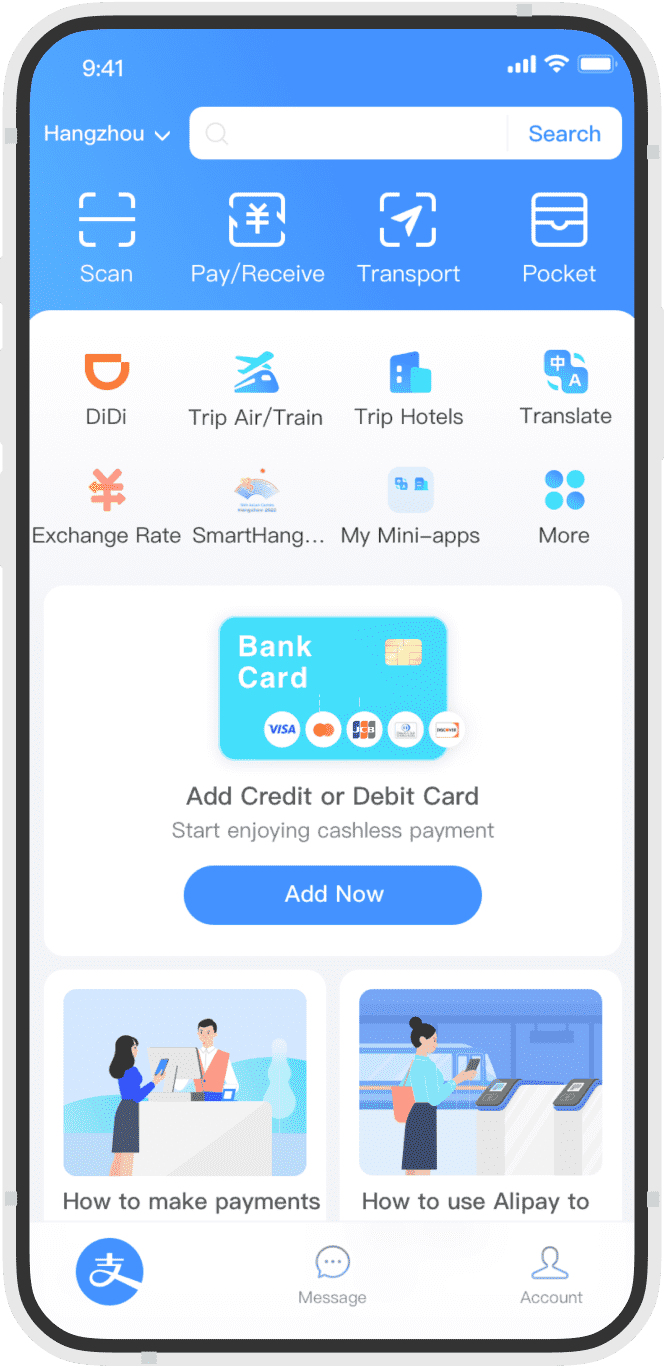
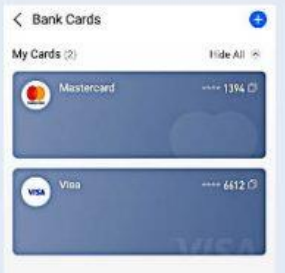
In Alipay, use the card shortcut or the card list to add a card and confirm it appears in the wallet. Then go back and find Scan and Pay/Receive. Scan is for the merchant’s QR code. The pay-code screen is for a cashier to scan. You can locate both at home without making a payment.


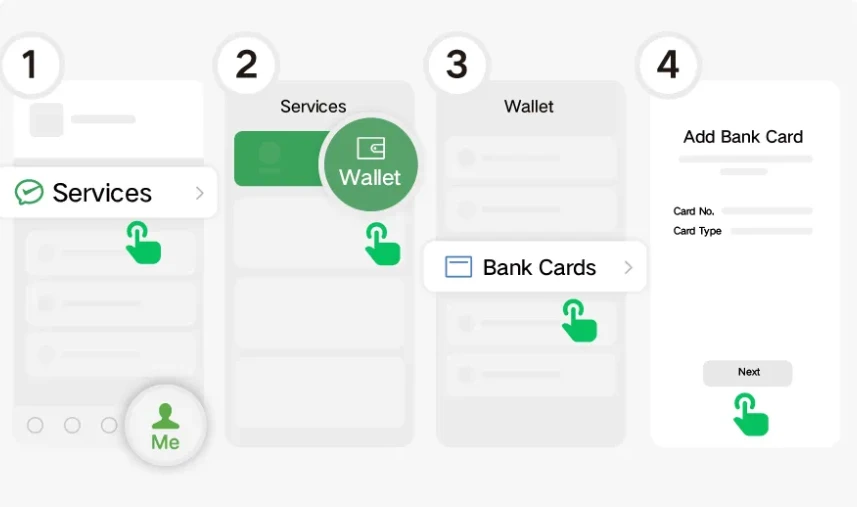
Set up WeChat Pay as your second wallet if your app and card support it. In the interface shown below, start at Me → Services → Wallet → Bank Cards. If Services is missing, use the activation screenshots in the payment guide and check what your version displays. Keep a separate card and a small cash fallback for the first day.
A saved card only proves the wallet accepted it for setup. At a staffed shop, the goal is a completed payment for the right amount. Use the payment walkthrough for both QR methods and for checking the transaction before you try again.

3. Save a destination you can show to someone offline
Look for AMap Global by AutoNavi on iPhone. The AMap walkthrough shows the app and the English transit menus. Before you fly, compare the property’s Chinese name, branch and street address with your booking. Paste the full Chinese address into AMap and check the district and pin.

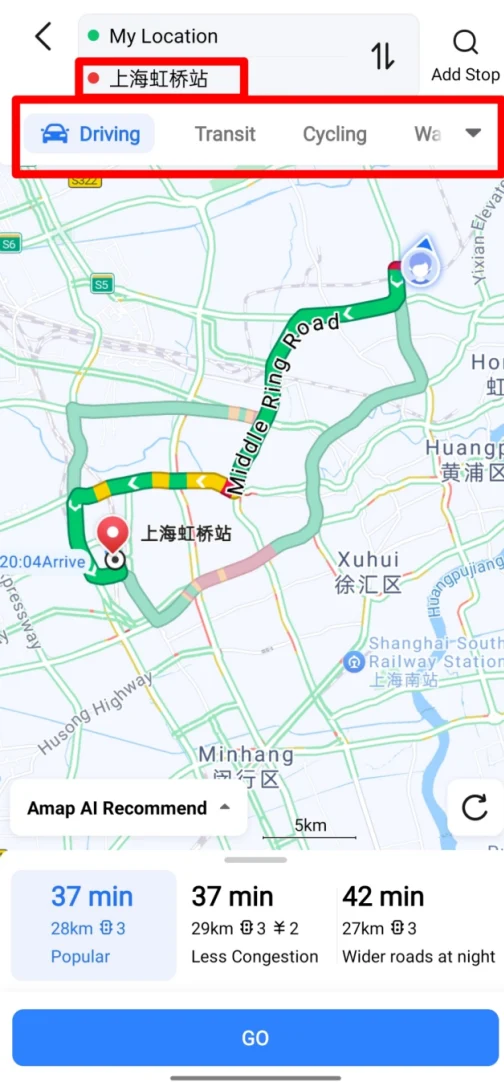
The station example shows why the full name matters. 上海虹桥站 is Shanghai Hongqiao Railway Station. The nearby airport has different terminals. Match the station or airport to the words on your own ticket before accepting a route.
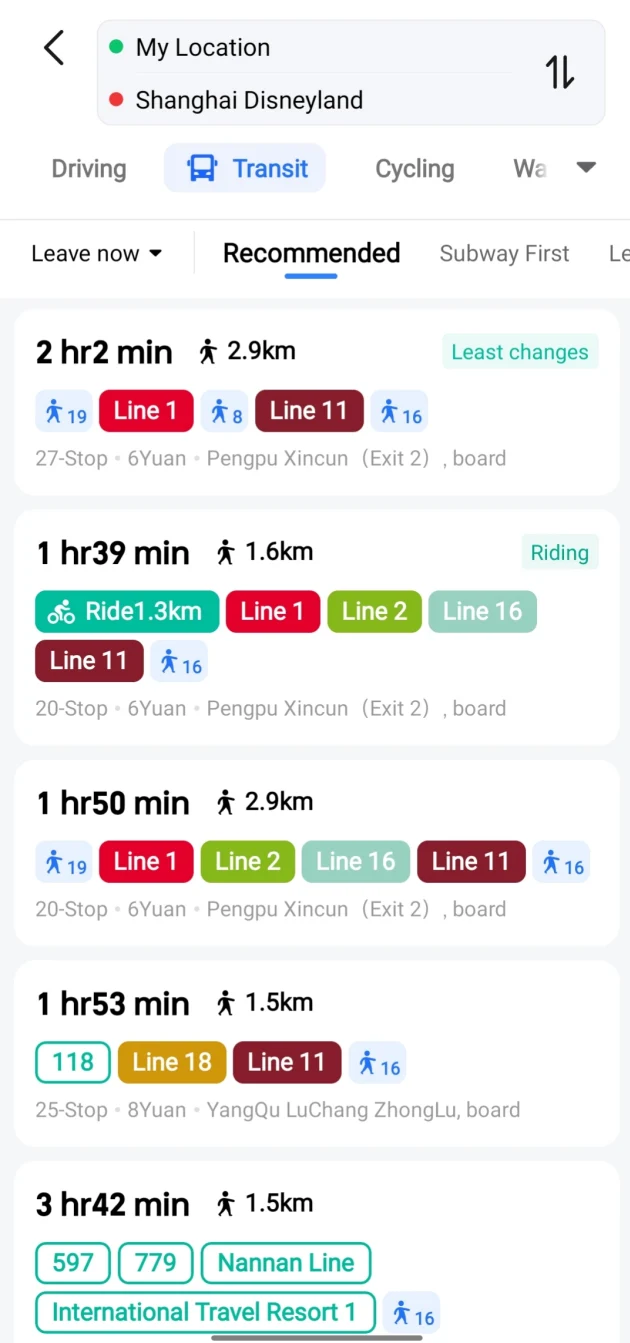
Save your Chinese hotel address and a map screenshot on the phone itself. Include your arrival terminal, the onward station if you have one, and a phone number for the hotel. Keep this outside a cloud-only booking inbox.
4. Run a DiDi practice search without calling a car
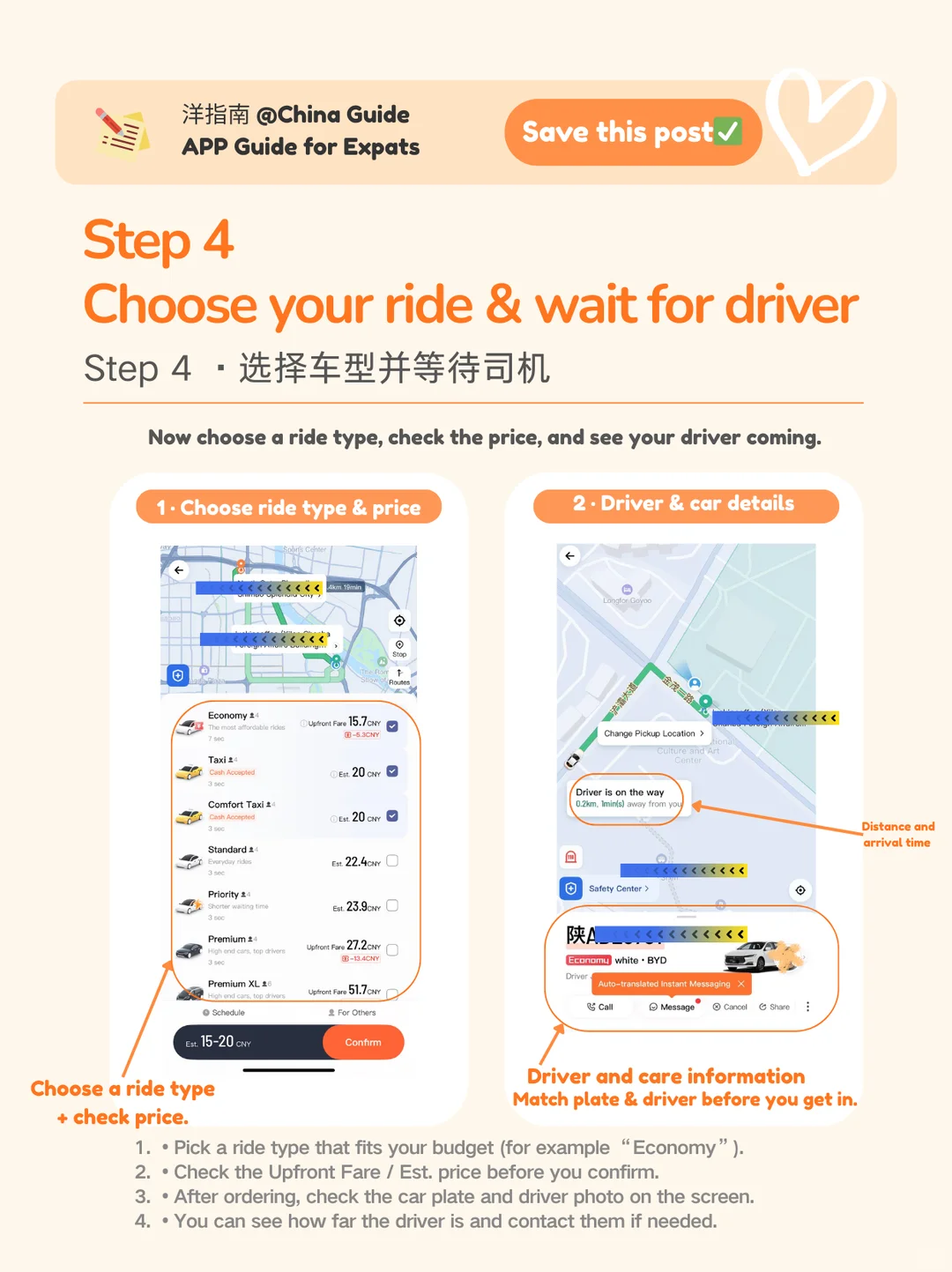
Open the mainland DiDi app and sign up with your usual number and its country code if your region and app support it. The DiDi walkthrough also shows a WeChat route to Ride Hailing. Confirm which payment method is available on your own account.


If the app lets you search your destination from abroad, look up the hotel or terminal and examine the selected destination and pickup point. Stop on the screen with the vehicle types and estimated fare. Confirm Request can call a driver. Leave it untouched on the practice run. If the app cannot show a fare until you arrive, save the hotel address and use the official taxi queue as your backup.

When you actually land, match the designated pickup zone and the plate shown in the app. If the pickup cannot be arranged, show your saved hotel address at the official taxi queue. At Shanghai Pudong T2, for example, the signed queue is shown below. Follow the signs at your own terminal.

You are ready to land when…
- You can open both wallet home screens and know where the payment controls are.
- Your main wallet shows a card. You have an independent way to pay if it is declined.
- You can identify the hotel pin in AMap and open the Chinese address offline.
- You know how to find the correct destination in DiDi and can recognise the button that actually requests a driver.
- You know which SIM will supply data, which line receives bank texts and where to turn if one fails.
After landing, test a fresh webpage with Wi-Fi off before calling a car. A working map over airport Wi-Fi tells you the map app works. The separate mobile connection test tells you whether you will stay connected after you walk out.
Sources and further reading
- China government visitor guidance on payment and ride-hailing
- Apple travel eSIM and dual-line guidance
- AutoNavi’s AMap Global listing
- How James in China is funded
Operator examples and text sources checked November 21, 2026. App control names can change with version and region.
Questions and updates
Comments may be reviewed before they appear.
Your comment and chosen name may be published. We store your IP address and browser details to help moderate comments.